Requirements
You need a phone number to publish a workflow and make it available to your users. Please refer to the phone number documentation for more information.You can still create workflows and test them in our sandbox preview.
Creating your first workflow
1
First Step - Creating a new Workflow
Inside Cogfy Messenger, go to the Workflows section in the sidebar or visit messenger.cogfy.com/:WORKSPACE/workflows and click New workflow.Fill in the name, choose the workflow type and hit Confirm.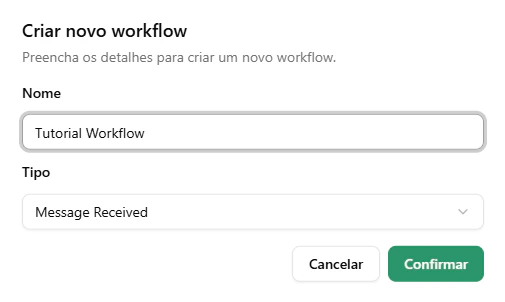
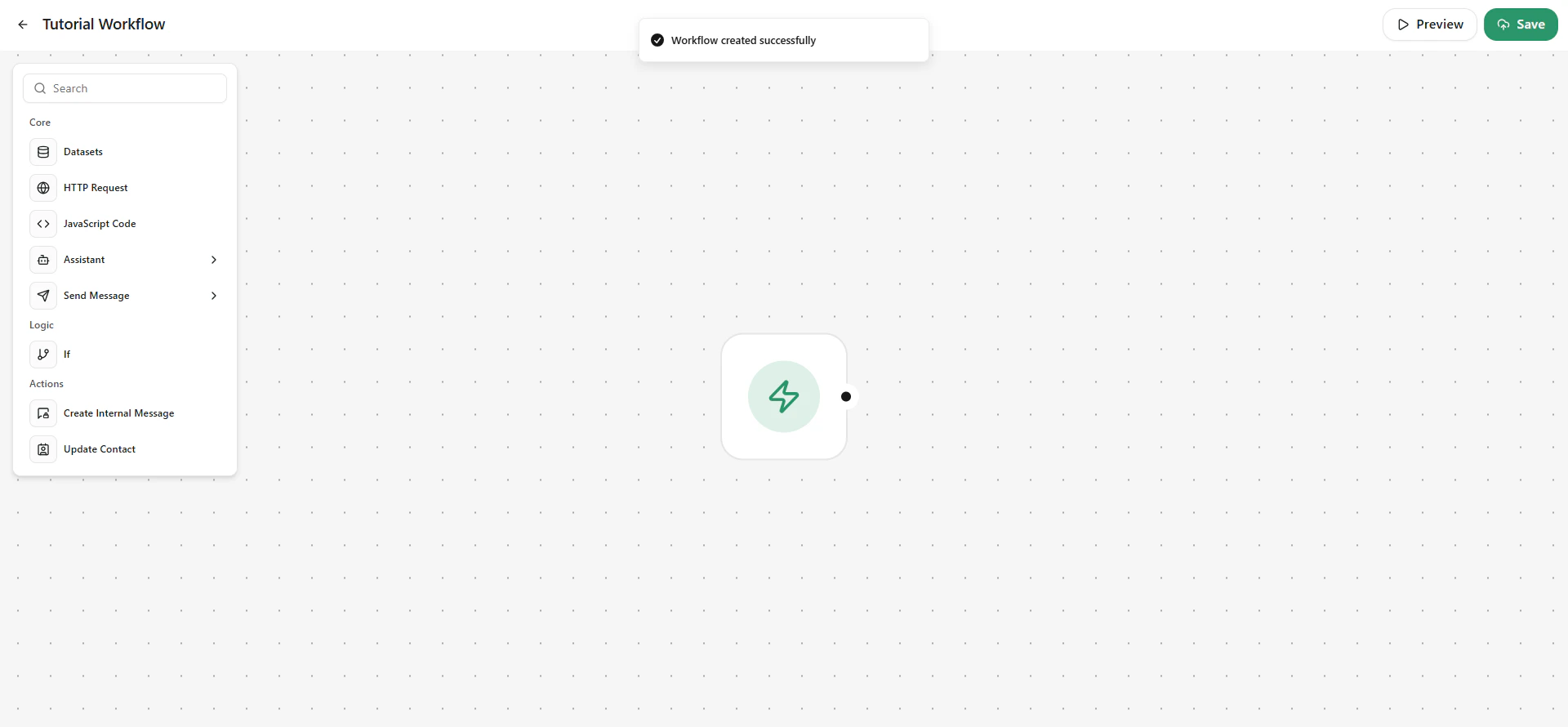
For this tutorial, we will use the Message Received workflow.
2
Second Step - Building the Workflow
On the sidebar, click on Assistant and add a OpenAI Assistant Node.Connect the trigger node to the OpenAI Assistant Node by clicking and dragging the handles, therefore creating an edge.
On the sidebar, click on Send Message and add a WhatsApp Text Message Node.Connect the OpenAI Assistant Node to the WhatsApp Text Message Node.
Now we have created a complete workflow path that has a trigger, an AI Assistant and an output through WhatsApp.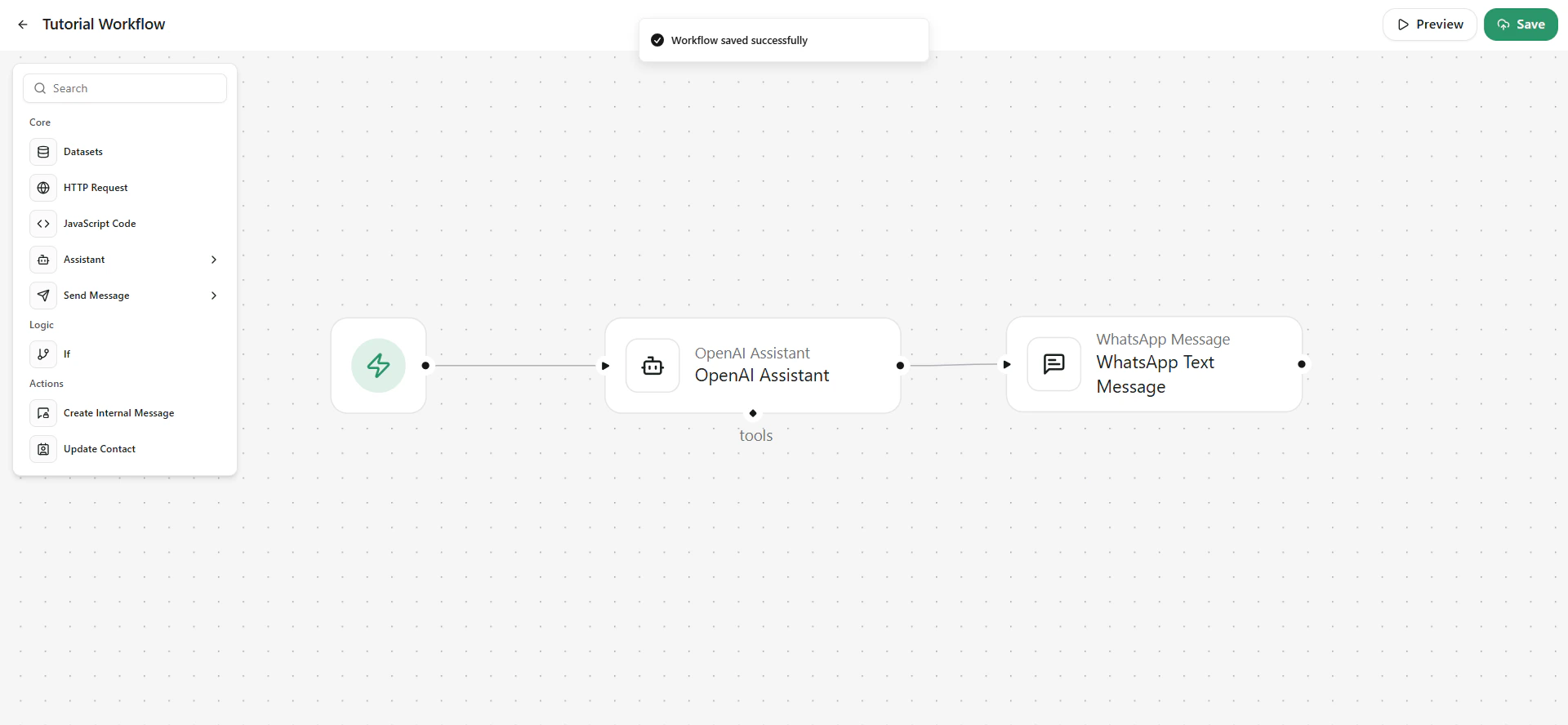
On the sidebar, click on Send Message and add a WhatsApp Text Message Node.Connect the OpenAI Assistant Node to the WhatsApp Text Message Node.
Now we have created a complete workflow path that has a trigger, an AI Assistant and an output through WhatsApp.
Don’t forget to save by clicking the save button at the top right corner!
3
Third Step - Configuring the OpenAI Assistant Node
Select the OpenAI Assistant Node (a green border shows which node is selected) and click the Edit button, or double click the node to open the Edit Node Dialog.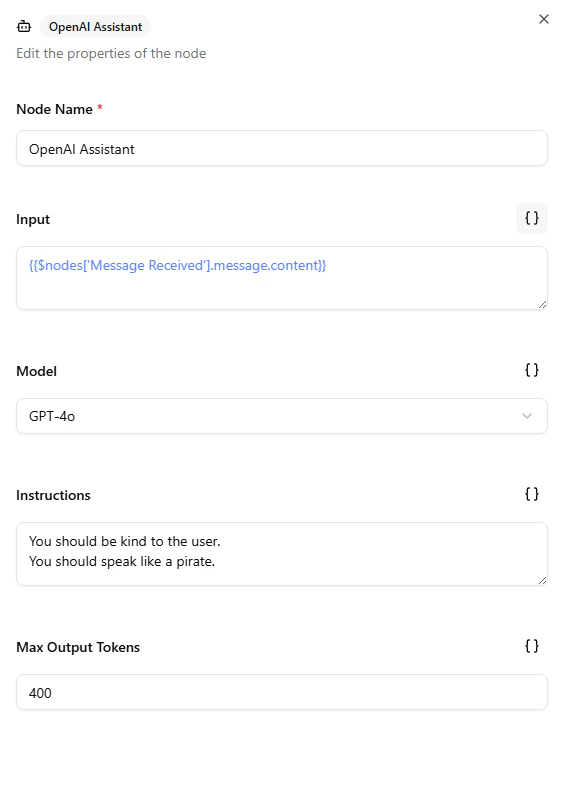
You can click the Brackets {} button on each field to enter interpolation mode. With interpolation, we can access properties of previous nodes by using {{$nodes['Node Name'].property}}.
-
Input is the message to be sent to the Assistant. For our OpenAI Assistant Node, we want the Message Received trigger content (e.g. the user message) to be the input.
On the Input field activate interpolation mode and insert
{{$nodes['Message Received'].message.content}}. -
Model is the AI brain that your users will be talking to, there are more powerful and expensive models as well as simpler, cheap and blazing fast models. You can choose any model you like, in this tutorial we will be using
GPT-4o. - Instructions are a way to control the Assistant to behave just how you’d like, you can make it kind, serious, make it give shorter answers or even make it talk like a pirate! You can give any instructions you want, in this tutorial we will just ask the AI Assistant to be kind… and to talk like a pirate… Ahoy!
-
Max output tokens will depend on the model you chose, if you choose a powerfull model, you should bump this setting up. Otherwise, you can take it a bit slower. In this tutorial, we will use a maximum of
400tokens.Tokens are the base element for AI processes. It’s how the AI segments your text before generating a response.
4
Fourth Step - Configuring the WhatsApp Text Message Node
Select the Send WhatsApp Text Message Node and click the edit button.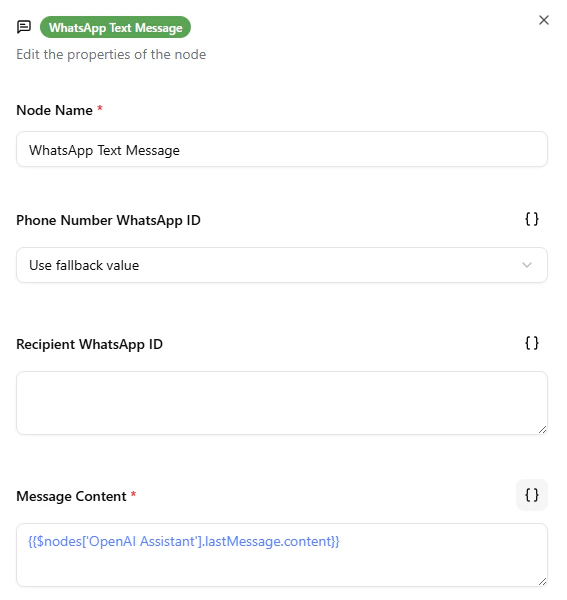
-
Phone Number WhatsApp ID is the WhatsApp ID of the phone number that will send that message. This field will list all your WhatsApp phone numbers connected to Cogfy.
You can choose Use fallback value to use the phone number that received the message in the trigger node, which is our case in this tutorial.
You can achieve the same result as Use fallback value by using the following in interpolation mode.
-
Recipient WhatsApp ID is the WhatsApp ID of the phone number that will receive the message sent from this node. You can leave it blank to use the phone number that sent the message caught by the trigger node, that is the user that sent the message, which is our case in this tutorial.
You can achieve the same result as blank value by using the following in interpolation mode.
-
Message Content is the content to be sent in the WhatsApp message. In this tutorial, we want this to be the message generated by our OpenAI Assistant Node.
Use interpolation mode to access the Assistant last message’s content.
5
Fifth Step - Sandbox Preview
Now you have a complete workflow!You can test it using the Preview button on the top right corner.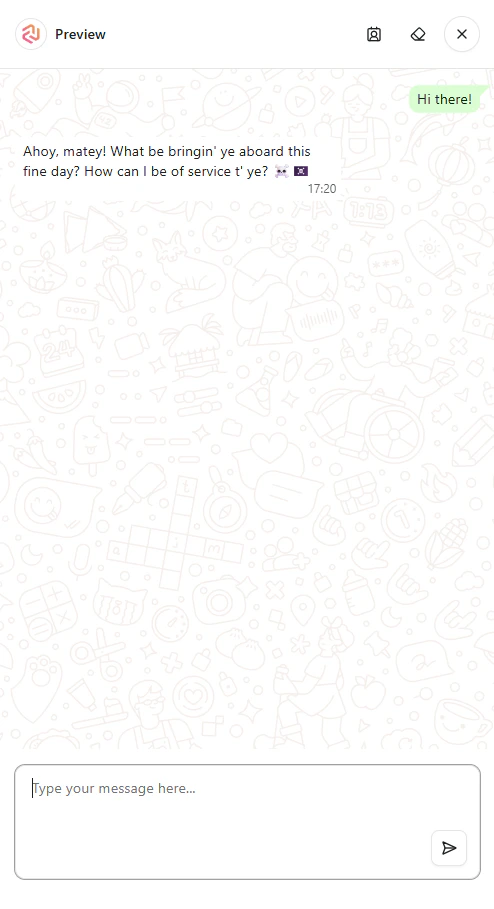
6
Sixth Step - Publishing Your Workflow
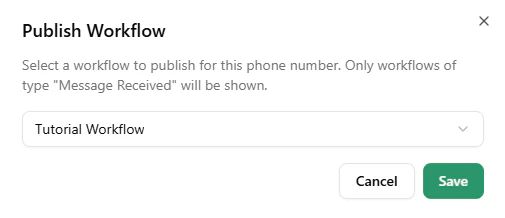
Hit the back button and go to the Chats section in the sidebar.Choose the desired phone number from the dropdown menu. Click the button and select Publish WorkflowSelect your workflow and hit Save.