> ## Documentation Index
> Fetch the complete documentation index at: https://messenger-docs.cogfy.com/llms.txt
> Use this file to discover all available pages before exploring further.
# Members
> Manage your Cogfy Messenger workspaces members
Workspace members are users who have been invited to collaborate within a specific Cogfy Messenger workspace. Each member can have different roles and permissions, allowing for effective team collaboration and management of conversations, contacts, and integrations.
> To manage workspace members, visit [messenger.cogfy.com/:WORKSPACE/settings/members](https://messenger.cogfy.com/:WORKSPACE/settings/members).
## Inviting members
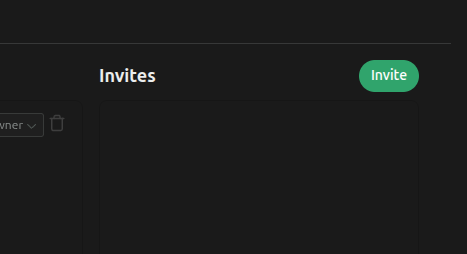
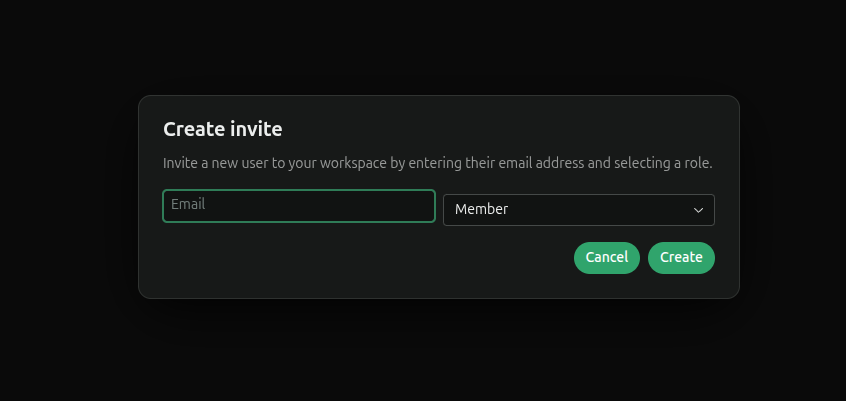 Check your email inbox for an invitation email from Cogfy Messenger. Click on the provided link to accept the invitation and join the workspace.
## Deleting members
Click "" to remove a member from the workspace. Please note that only workspace admins have the permission to delete members.
Check your email inbox for an invitation email from Cogfy Messenger. Click on the provided link to accept the invitation and join the workspace.
## Deleting members
Click "" to remove a member from the workspace. Please note that only workspace admins have the permission to delete members.