> ## Documentation Index
> Fetch the complete documentation index at: https://messenger-docs.cogfy.com/llms.txt
> Use this file to discover all available pages before exploring further.
# Contacts
> Manage contacts in Cogfy Messenger
Contacts are created automatically whenever someone sends a message to your assistant’s phone number. You can also pre-register contacts manually, allowing you to assign tags, names, emails, and other details in advance — making it easier to organize users and deliver personalized communication from the start.
On the Contacts page, you can view a contact’s full details, including their properties, the phone numbers they have interacted with, and any OAUTH accounts connected through the assistant.
> To manage contacts, visit [messenger.cogfy.com/:WORKSPACE/contacts](https://messenger.cogfy.com/:WORKSPACE/contacts).
## Create a contact manually
This action immediately creates an empty contact.
Click the edit button to set the contact's properties. Add the phone number in the "phone" field—this way, when the person sends a message, the pre-registered contact will be updated with information received from WhatsApp.
## Import multiple contacts
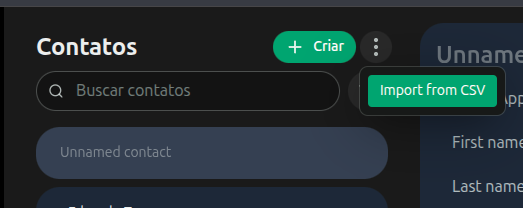
You can import multiple contacts at once using a CSV file
This action opens a dialog for uploading a CSV file.
 Click the download button to get a sample CSV file. Use this file to format your contact data correctly before importing it.
Click the 'Choose File' button to select your formatted CSV file for import.
Click the 'Upload' button to import the contacts from your CSV file.
Click the download button to get a sample CSV file. Use this file to format your contact data correctly before importing it.
Click the 'Choose File' button to select your formatted CSV file for import.
Click the 'Upload' button to import the contacts from your CSV file.