> ## Documentation Index
> Fetch the complete documentation index at: https://messenger-docs.cogfy.com/llms.txt
> Use this file to discover all available pages before exploring further.
# Plugins
> Learn about plugins and how to use them with Cogfy Assistants
Plugins allow you to extend the capabilities of an assistant by integrating external services and custom functionalities.
On the plugins tab, you can add, update, duplicate, enable or disable, and delete plugins for your assistant.
Each plugin can be configured to connect with different tools, such as Google Calendar, and you can manage all plugin settings directly from the interface.
This makes it easy to customize how your assistant interacts with other systems and automates tasks according to your needs.
## Example Plugins
The Assistant plugin allows you to integrate and configure AI assistants within your application. You can select an assistant, define its interaction strategy (Delegate or Orchestrate), and provide a description.
The **Delegate strategy** lets the assistant directly use another assistant’s response.
The **Orchestrate strategy** enables the assistant to process the response further before delivering the final answer.
This plugin is designed to streamline assistant management and enhance collaborative AI workflows.
The Contact plugin allows your assistant to access and manage user contact information, making it easier to personalize interactions and provide relevant assistance.
 The Contact plugin works seamlessly with the [Link assistant to phone number](/guide/assistants/link-assistant-to-phone-number) feature, enabling advanced automation and personalization in your conversations. By leveraging the Contact plugin, your assistant can update user tags in real time as conversations progress. These tags are then used as conditions in the assistant rules, allowing you to dynamically route conversations to the most appropriate assistant based on user behavior, interests, or profile changes.
The Google Calendar plugin lets your assistant create, view, and manage calendar events.
Users can connect their Google account and automate scheduling directly through the assistant.
The HTTP Request plugin allows your assistant to make HTTP requests to external APIs.
Configure the method, URL, headers, query parameters, and request body to integrate with other services.
The MCP Server plugin allows your assistant to interact with various communication channels, enabling it to send and receive messages across different platforms seamlessly.
The Notion plugin connects your assistant to Notion, enabling it to create and update pages, databases, and more within your workspace.
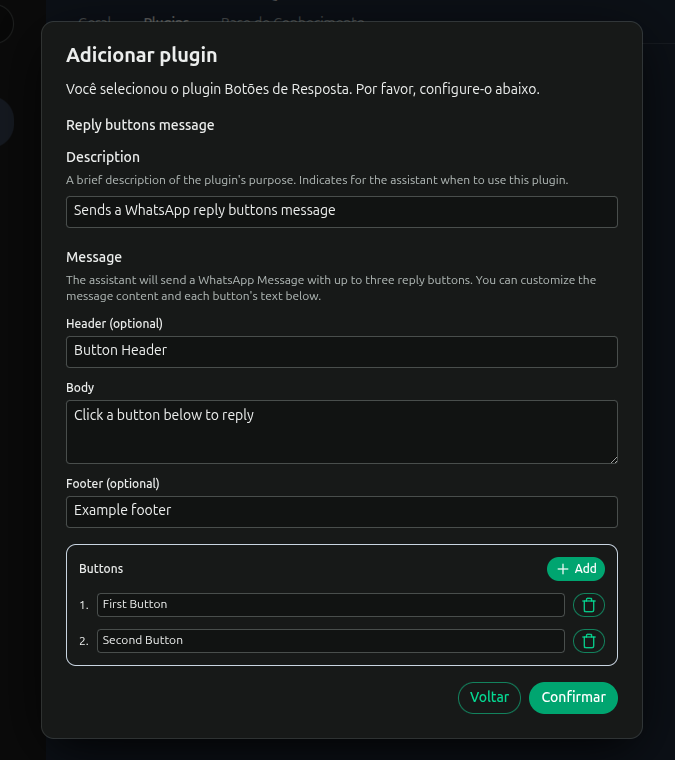
The Reply Buttons plugin enables your assistant to send WhatsApp messages with up to three interactive reply buttons.
You can customize the header, body, footer, and button labels to fit your use case.
The Contact plugin works seamlessly with the [Link assistant to phone number](/guide/assistants/link-assistant-to-phone-number) feature, enabling advanced automation and personalization in your conversations. By leveraging the Contact plugin, your assistant can update user tags in real time as conversations progress. These tags are then used as conditions in the assistant rules, allowing you to dynamically route conversations to the most appropriate assistant based on user behavior, interests, or profile changes.
The Google Calendar plugin lets your assistant create, view, and manage calendar events.
Users can connect their Google account and automate scheduling directly through the assistant.
The HTTP Request plugin allows your assistant to make HTTP requests to external APIs.
Configure the method, URL, headers, query parameters, and request body to integrate with other services.
The MCP Server plugin allows your assistant to interact with various communication channels, enabling it to send and receive messages across different platforms seamlessly.
The Notion plugin connects your assistant to Notion, enabling it to create and update pages, databases, and more within your workspace.
The Reply Buttons plugin enables your assistant to send WhatsApp messages with up to three interactive reply buttons.
You can customize the header, body, footer, and button labels to fit your use case.
 The Text to Speech plugin allows your assistant to convert text responses into audio messages, enhancing accessibility and user experience.
You can view all available plugins in the "Plugins" tab on the assistant's page.
This section allows you to see, manage, and configure the plugins connected to your assistant, making it easy to extend its functionality and integrate with external services.
The Text to Speech plugin allows your assistant to convert text responses into audio messages, enhancing accessibility and user experience.
You can view all available plugins in the "Plugins" tab on the assistant's page.
This section allows you to see, manage, and configure the plugins connected to your assistant, making it easy to extend its functionality and integrate with external services.